
Revised: Fri January 24, 2025
Companies with multiple facilities transfer products from one facility to another. Sometimes they have warehouses or store rooms that store extra products and transfer those to a facility as the need dictates. Transfers can occur between facilities as well as across companies.
DataWorks provides two ways to transfer product. You have the ability to create a One-Step Transfer Out where DataWorks handles the "Transfer In" record automatically, or you can choose a Two-Step Transfer Out where the receiving facility is responsible for completing the "Transfer In" record. Usually, business rules within a company dictate which method will be used.
For instance, one company may want the receiving facility to wait until the merchandise is physically counted and inspected before they complete the transfer. This is an example of the Two-Step Transfer method. Another company may be transferring to another store within the same building and not feel the need to physically count or inspect the merchandise before completing the transfer. This is an example of the One-Step Transfer method.
NOTE The Transfer In form filters records by In Process and Employee Access. If you need to review Transfer In records which have a status other than In Process, please use the Review > Transfers > Transfer In menu. All One-Step transfers will be on this menu since they are not in process.
If you are using our GL module, transfers change the asset value of the To and From facilities inventory. DataWorks will credit the From facility and debit the To facility. If you are transferring between companies, please see Debits and Credits for a break down of the accounts that are debited and credited. If you are transferring Consume When Received items, please see Transaction Costs for information on cost of goods sold behaviors.
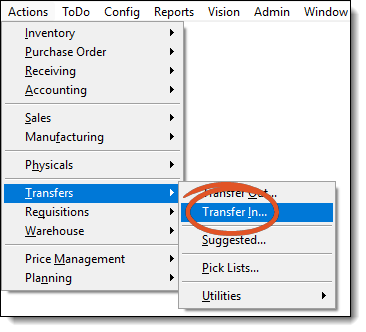
A Transfer In action form will display. This form displays a message alerting you to the number of In Process (open) transfers that are waiting to be completed.
NOTE You may have transfers that have been shipped but no one has created a new record for it. A Transfer In record has to exist and be In Process to be considered for this message.
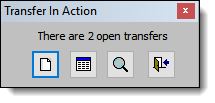
 New - Click this button to create a new record for processing a Two-Step Transfer.
 List - Click this button to see a list of In Process (open) transfers that are waiting to be completed. You can select one from the list and go straight to that record, thus eliminating the need to use the Find button.
 Find - Click this button to load the Transfer In Find form. If you need to edit or review a previously created transfer in record, you can use this form. Learn more.
 Close / Exit - Click this button to close out of this menu.
 A Two-Step transfer requires the receiving facility to create a transfer in record to complete the transfer process. This method of transferring is used if you want the receiving facility to wait until the goods have physically arrived and are accounted for before completing the transfer. If the receiving facility is a warehouse, you will need to specify the location each item will be placed in. Items on a Two-Step transfer that have not been accounted for will be designated as In Transit for the To Facility.
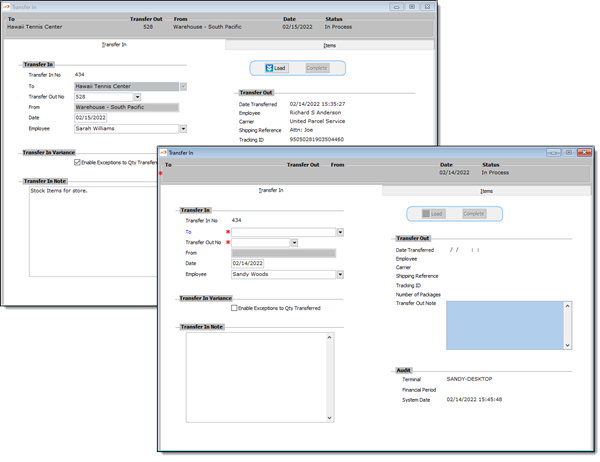
button the Action pop-up form or in the main toolbar to create the transfer in record.
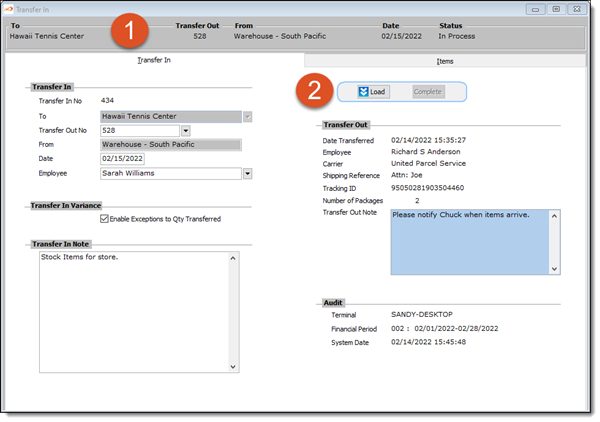
This read only section is populated by the fields the user selects in the Transfer In Section. Learn more.
The Load button populates items from the Transfer Out record to the Items Tab of the Transfer In record. This button is only enabled when the Transfer In record is "New" and has not been saved. Learn more.
The Transfer In tab is where you will select the information about the receiving and sending facilities, and enable transfer variances (if any). You can add any transfer in notes as well. Learn how.
This tab contains information about the items being transferred. DataWorks automatically populates the grid with all the items that were listed on the Transfer Out form that have not been accounted for. Learn more
Once all the items that were transferred in have been accounted for on the Items tab, you are ready to complete this Two-Step transfer. You will need to change the Status. Learn how.
Users with Employee Rights can queue a Transfer In record. Queuing allows the user to continue working while the transfer is processing. Learn how.
DataWorks offers the ability to print a document for the transferred items. Learn how.
DataWorks uses statuses to control the work flow of transfers. Learn more.
 button in the main toolbar.
 button in the main toolbar. When prompted "Are you sure you want to delete this record?", click Yes.
 button in the main toolbar.
 See Also